
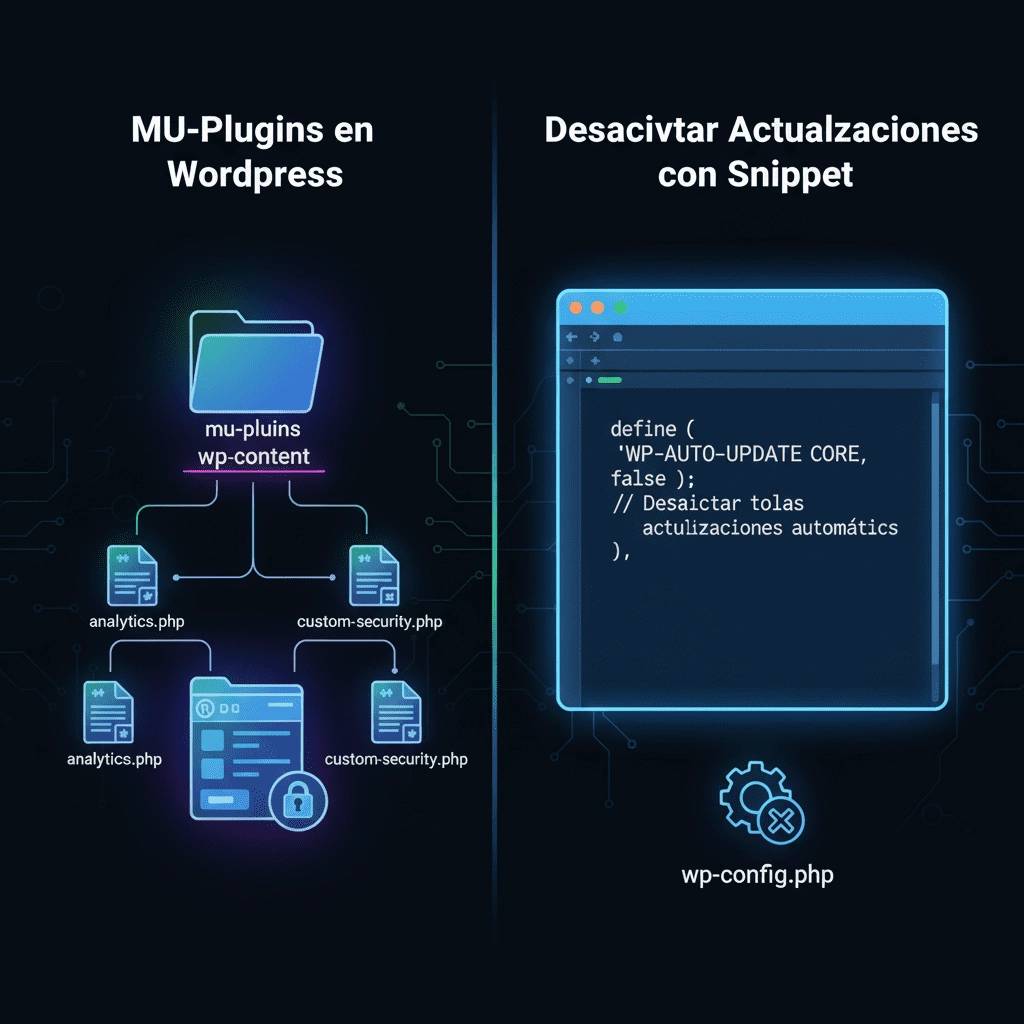
MU-Plugins (Must Use Plugins) in WordPress are special plugins that load automatically and cannot be deactivated from the admin panel. They are ideal for critical features or customizations that must always remain active.
What are MU-Plugins?
- Stored in
/wp-content/mu-plugins/. - Activate automatically without manual intervention.
- Cannot be deactivated via WordPress admin.
- Load before normal plugins.
- Only PHP files directly in the
mu-pluginsfolder are loaded.
Step-by-step Guide to Create a MU-Plugin
- Create
mu-pluginsfolder
Inside your WordPress installation, inwp-content, create themu-pluginsfolder if it doesn’t exist. - Create a PHP file for the MU-Plugin
Example:disable-updates.php. - Add basic plugin header
<?php
/*
Plugin Name: Disable Plugin Updates
Description: Disables automatic updates and manages plugins via code.
Version: 1.0
*/
- Snippet to disable automatic plugin updates
add_filter('auto_update_plugin', '__return_false');
- Snippet to deactivate specific plugins
add_action('admin_init', function() {
    deactivate_plugins(['plugin-folder/plugin-file.php']);
});
Replace 'plugin-folder/plugin-file.php' with the plugin slug.
- Upload the PHP file to
/wp-content/mu-plugins/
Use FTP or your hosting file manager.
Benefits of MU-Plugins
- Always active, cannot be accidentally deactivated.
- Fast and secure load before normal plugins.
- Centralize critical features in one place.
- Prevent automatic updates from affecting customizations.
Important Considerations
- MU-Plugins do not update automatically; all changes must be done manually.
- Subfolders are not supported; use a loader for multiple files.
Ready-to-use snippet
<?php
/*
Plugin Name: Disable Plugin Updates and Control Plugin Activation
Description: Disables all automatic plugin updates and allows deactivation of specific plugins via code.
Version: 1.0
*/

// Disable automatic plugin updates
add_filter('auto_update_plugin', '__return_false');

// Deactivate a specific plugin (example)
add_action('admin_init', function() {
    deactivate_plugins(['akismet/akismet.php']); // Replace with plugin slug
});
Snippet with site_transient_update_plugins (blocks notifications)
Option 1: Specific plugin
/*
Plugin Name: Disable Update for Specific Plugin
Description: Prevents automatic updates for a specific plugin.
*/
add_filter('site_transient_update_plugins', function ($value) {
    if (isset($value) && is_object($value)) {
        unset($value->response['akismet/akismet.php']);
    }
    return $value;
});
Option 2: All plugins
<?php
/*
Plugin Name: Disable Updates for All Plugins
Description: Prevents automatic updates for all plugins.
*/
add_filter('site_transient_update_plugins', function ($value) {
    if (isset($value) && is_object($value)) {
        $value->response = [];
    }
    return $value;
});
Filter Comparison
| Feature | add_filter('auto_update_plugin') | add_filter('site_transient_update_plugins') |
|---|---|---|
| Blocks auto updates | Yes | Not directly, but hides notifications |
| Hides admin alerts | No | Yes |
| Granular control | Yes | Yes (removes specific plugins) |
| Recommended for | Controlling automatic updates | Hiding update notifications |
Recommendation:
- Only prevent automatic updates →
auto_update_plugin - Hide alerts →
site_transient_update_plugins
Combining both filters gives full control, but outdated plugins pose a security risk.